

Showing 1–12 of 18 widgets · Free widgets first
Free to Use
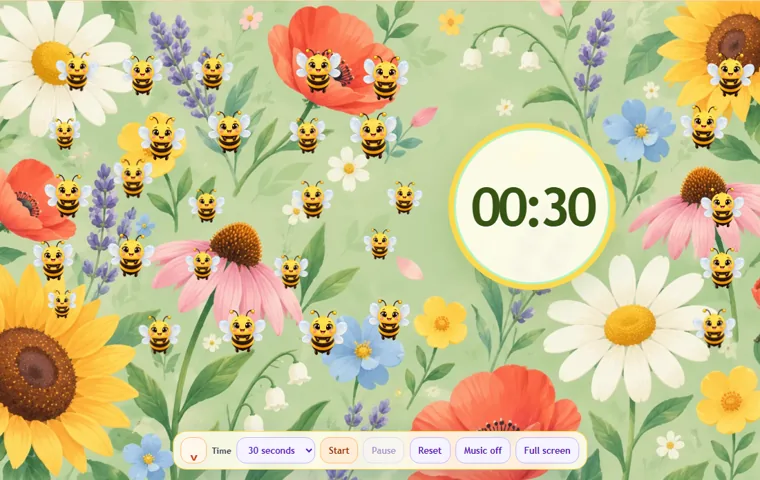
Buzzing Bees Timer
An animated countdown timer with buzzing bees in a flower-filled meadow.
Free to Use
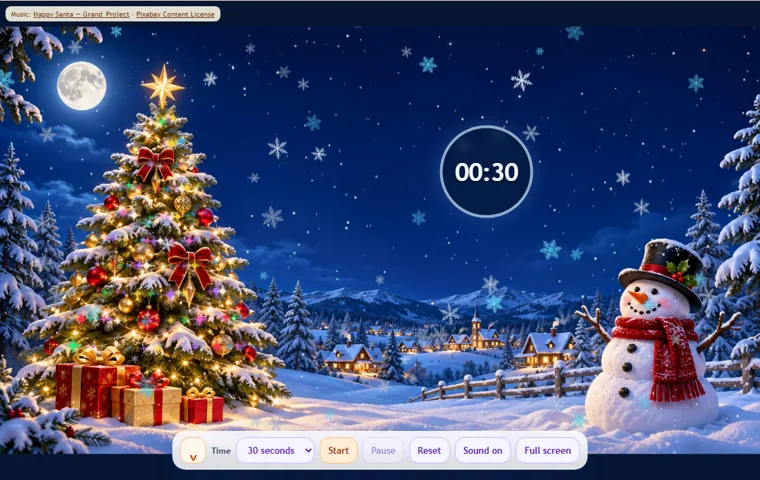
Christmas Snowflakes
An animated countdown timer with a snowy Christmas village and drifting snowflakes.
Free to Use
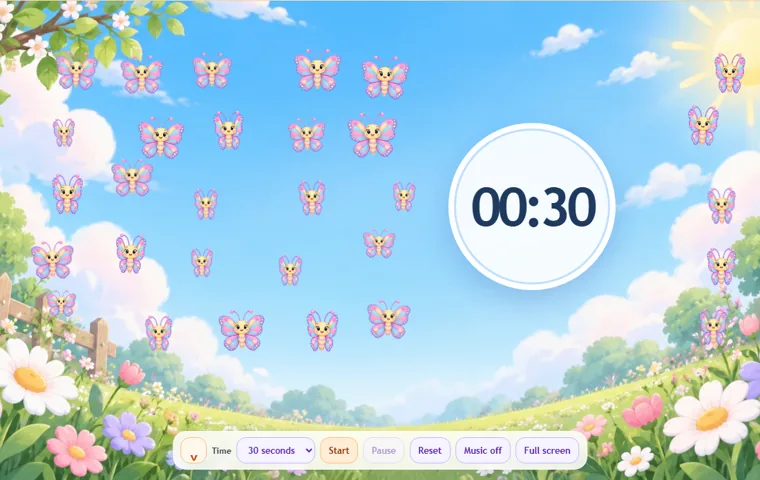
Fluttering Butterflies
An animated countdown timer with butterflies fluttering through a colourful garden.
Free to Use
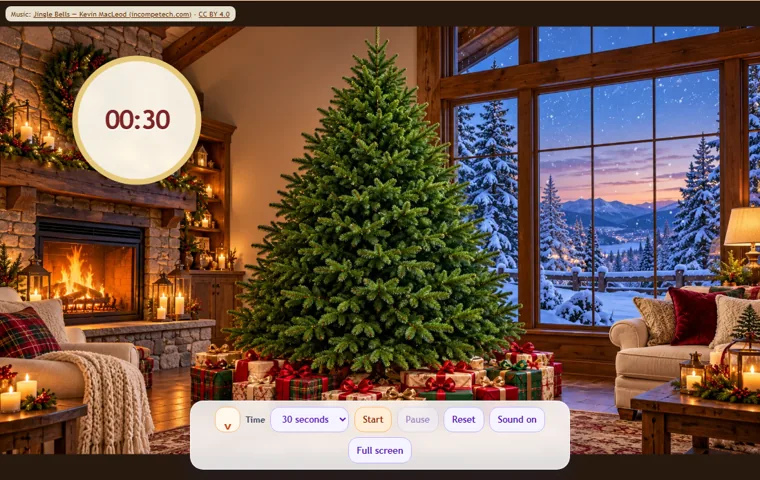
Let's Decorate the Christmas Tree
An animated countdown timer that brings a Christmas tree to life.
Free to Use
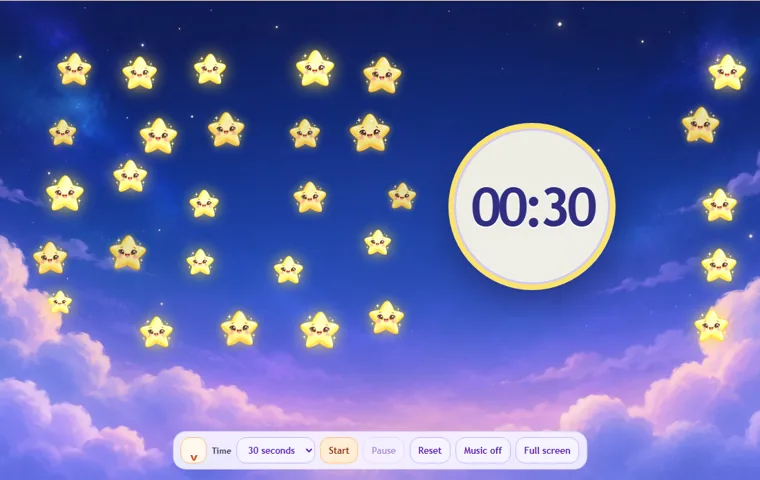
Shooting Stars Timer
An animated countdown timer with shooting stars in a magical night sky.
Free to Use
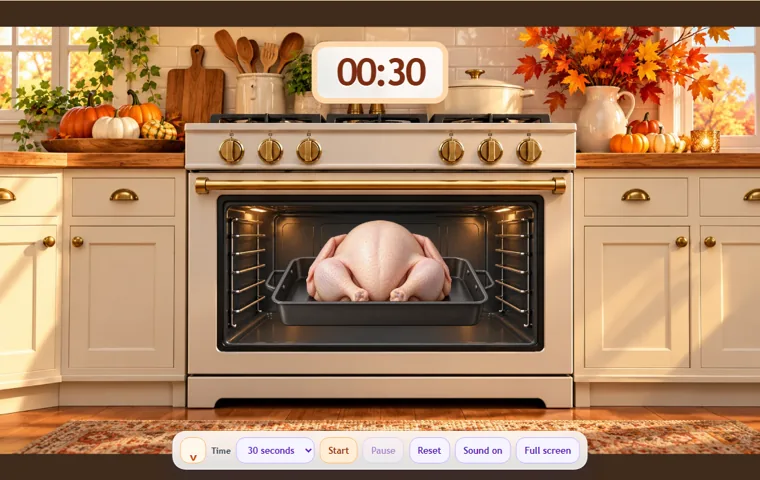
Thanksgiving Turkey Timer
An animated countdown timer that cooks a Thanksgiving turkey as time passes.
Free to Use
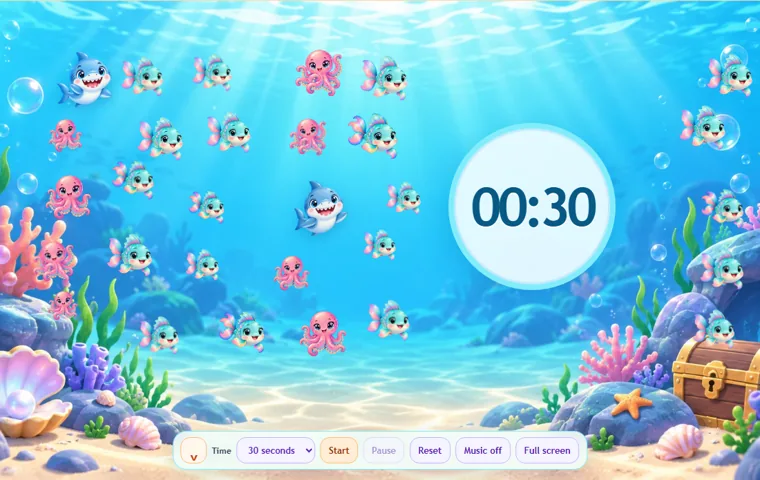
Under the Sea Timer
An animated countdown timer with fish, octopuses and sharks in a coral reef.
Find your fit
Which option is right for me?
Swipe the table sideways to compare all three options.
| I want to... | One widget online | Classroom Display | Offline copy |
|---|---|---|---|
| Use it | Open one tool on its own | Arrange supported widgets together | Open a saved file separately |
| Connect to the internet | Needed to use online | Needed to use online | Needed to buy and download, not to use the saved file |
| Choose access | Some free; others need Pro Lite | Some free; others need Pro Lite | One-time purchase for available editions; free Dice sample also available |
A subscription covers online access, not an offline download. An offline purchase does not unlock online or Classroom Display access.
Here to help
Questions, answered.
Everything you need to choose how to get started.
Do I need a Classroom Display to use a widget?
No. You can open widgets individually online. A Classroom Display is another option when you want supported widgets together on one screen.
Are widgets free?
Some widgets or features are free online; others require Pro Lite. Pro adds AI features. Offline editions are separate, one-time purchases where available. The Dice Roller also has a free offline sample. View a widget for its specific options.
Does my subscription include offline downloads?
No. Pro Lite provides online access to included widgets while your subscription is active. Pro adds AI features. An available keep-forever offline edition is a separate purchase.
Does buying an offline copy include Classroom Display access?
No. Your downloaded copy opens separately in a browser. Online and Classroom Display access are separate from an offline purchase.
How do I open an offline widget?
Save the downloaded HTML file to an easy-to-find folder and open it in a desktop browser such as Chrome or Edge. The free Dice sample comes in a ZIP file: unzip it first. You need internet to download, but not to use the saved widget.
Which devices can I use?
Offline downloads are best on a laptop, desktop or Chromebook. You can present from a connected computer on an interactive whiteboard. Opening local HTML files can be less straightforward on tablets, including iPads.
Will my settings or activity work be saved?
It depends on the widget and how you use it. Some save settings or work in your browser, while others offer a separate save file or reset when closed. Check the widget's getting-started guide and keep a separate record of important work.
How do I get updates to an offline purchase?
When an update is available, sign in and download the latest copy from your TGM library. Your existing saved file does not update automatically.
Ready to explore?
Find the right widget for your next teaching moment.
Try a demo, explore the library and choose how you'd like to use it.